Zouti Photos template system
In this post
Why I designed my own template language
I started developing osxphotos, the command line tool that Zouti Photos builds on, around 2019. My primary goal was to export photos and videos from my Apple Photos library into my own folder structure, while preserving metadata. I wanted to use each photo’s metadata to choose its export folder and filename. This is a perfect use case for a template system.
For example, the template {created.year}/{created.mm}/{created.dd} would put a photo taken on October 24, 2026 into 2026/10/24. Everything outside the braces stays as typed; each field inside braces is replaced with a value from the photo.
osxphotos is written in Python, so I started by looking at existing Python templating systems. I considered three alternatives:
-
Native Python string formatting: This would work for simple substitutions, like a photo’s title:
'{title}'.format(title=photo.title)The user could supply the format string (
'{title}') and osxphotos could supply the values. But I also needed to handle fields with several values, like albums and keywords. -
Jinja: A common Python templating system with loops and filters that could handle lists of values.
-
Mako: Another Python templating system with loops and access to Python expressions. I was already using Mako in osxphotos to generate XMP sidecars and was hoping I could use it here too.
Both Jinja and Mako can render single-line templates. But I wanted users to be able to write a short template as a command line argument, such as --directory '{created.year}/{created.mm}/{created.dd}', and get back several directory or filename values when a photo had several albums or keywords. I wanted that behavior built into the template language.
One photo, several paths
A photo can belong to more than one album and contain more than one person. Suppose it’s in the albums Vacation and Favorites, and contains Katie and Suzy. The template {album}/{person} produces four paths:
Favorites/Katie
Favorites/Suzy
Vacation/Katie
Vacation/Suzy
This is the Cartesian product: every album combined with every person. Used as an export directory template, it exports a copy of the photo into each directory. Sometimes that’s exactly what you want. Other times you want to join several values into one, which I’ll get to below.
After experimenting with the available template systems, I decided what I really needed was my own template system designed specifically for the osxphotos use cases.
How the template language grew
Like all languages, the osxphotos template language evolved over time. The initial implementation supported simple substitutions like {created.year} for the photo’s four-digit creation year or {original_name} for its original filename without the extension.
Over time, I realized that users needed to manipulate the template values. I added features for:
- Folder paths:
{folder_album(>)}represents the photo’s folder and album hierarchy asFolder>Subfolder>Albuminstead ofFolder/Subfolder/Album, useful for hierarchical keywords in tools like Lightroom Classic. - Find and replace:
{album[/,:]}changes an album value such as2026/Paristo2026:Paris. - Joining values:
{,+keyword}combines the keywordsVacationandBeachinto one value,Vacation,Beach, instead of producing a separate result for each keyword. - Filters:
{album|upper}turnsBeach VacationintoBEACH VACATION.
Zouti Photos uses the same core template syntax for export folders and filenames, and for bulk edits to titles, captions, keywords, and albums. Most templates work in both tools, though there are some differences.
Design philosophy
My overall design philosophy is to make the simple things easy and the hard things possible. I think the template language used by osxphotos and Zouti Photos does this. It takes a bit to learn, but once you do learn it, you can use the template system to really make the tools your own.
Try a template before using it
I wanted people to be able to experiment with templates before using them in an export. In osxphotos, select a photo in Apple Photos and run osxphotos template in Terminal to try templates against it.
In Zouti Photos, select a photo and open Tools ▸ Template Playground (⌥⌘Y). You can preview the results, look up fields and filters, save templates, and see how each expression is evaluated in the Steps view. It doesn’t export files or change your photo’s metadata.
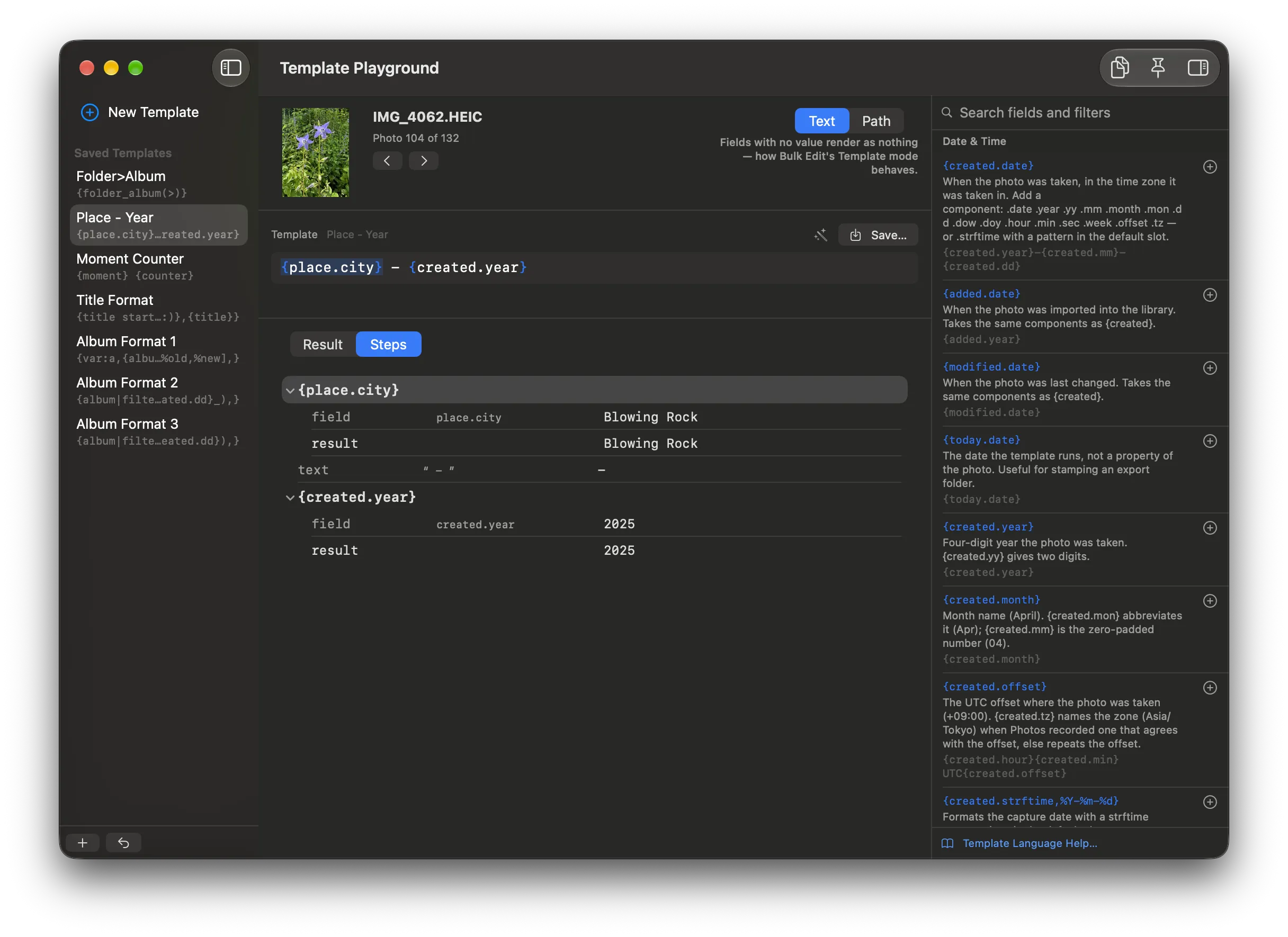
The Steps view shows how {place.city} - {created.year} gets its values from the selected photo: Blowing Rock and 2025. Saved templates are on the left, and the field and filter reference is on the right.
Try {keyword} on a photo with several keywords, then try {,+keyword} to see the difference between several values and one joined value. The full template reference has more examples.